
Harunobu, a Machine-Readability and Rule-Compliance Checking Tool
In Digital Agency, in accordance with the "Rules for Machine-Readability in Administrative Data," a judgment tool called "Harunobu" is available on GitHub. This tool allows you to check and score how well your data complies with the rules. By checking the scoring results, you can understand which parts of the data should be corrected and improve the machine-readability.
Table of Contents
- 1. About Harunobu
- 2. What you can do (three forms of use)
- 3. How to use (browser screen)
- 4. Usage (CLI)
- 5. Considerations
- 6. Inquiries
- 7. Information
1. Harunobu
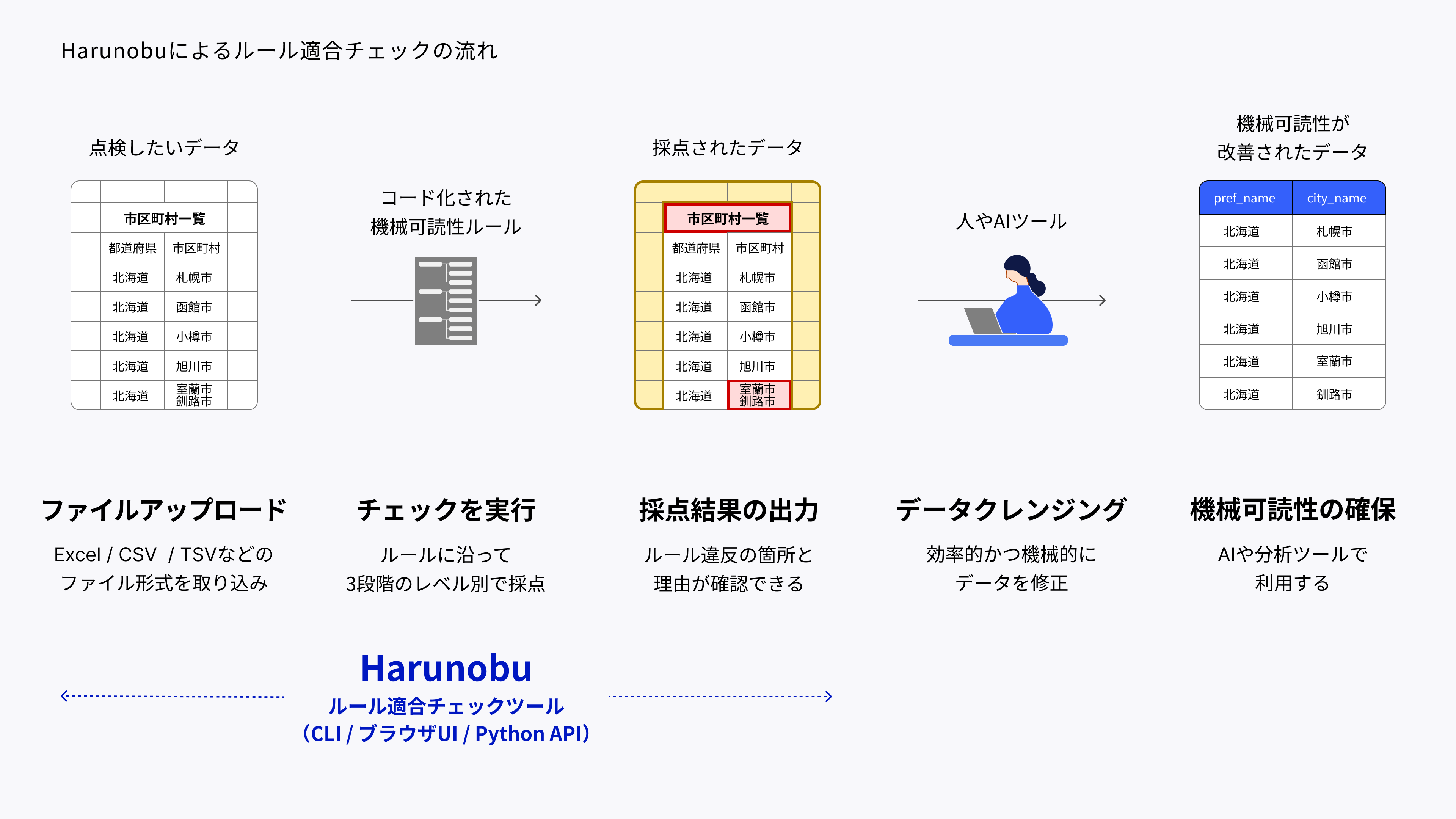
Harunobu is a judgment tool that checks the machine readability of Excel, CSV, and TSV files against the "Rules on Machine Readability in Administrative Data" and scores them out of 100 points. It was developed by Digital Agency and is available on GitHub. The results of the scoring show the locations of violations and the reasons for them, so you can consider areas for data improvement while viewing the results.
- Machine readability rule conformance check tool Harunobu (GitHub)
- *To run the tool, it is necessary to build an environment such as Python. For specific instructions on initial setup, please check the README at the link above (GitHub repository).
This tool can be operated in the user's local environment. It can also be incorporated into a system that processes data as a library. Unless the AI judgment support function is turned ON (* 1), judgments are made with mechanical logic in the program. Since the content of the loaded file is never sent to external servers, you can safely check unpublished administrative data and work files that are being edited and may contain confidential information.
- * 1: Only if you optionally enable the "Decision-making assistance function based on AI," AI will be sent to APIs of external data services (Gemini, ChatGPT, Claude, etc.) set by you. When using the function, please make a decision in accordance with the security policy of your organization.
2. What you can do (three forms of use)
Harunobu offers three types of usage according to the purpose of use. It can support a wide range of needs, from those in charge of practical work who want to check files intuitively by operating the screen, to engineers who want to automatically inspect a large amount of data and incorporate it into their own organization's systems. In either case, the judgment logic is the same, and you can download it from GitHub and run it safely in your local environment.
| Mode of use | Outline | Expected Usage Scenarios |
|---|---|---|
| Browser screen (Streamlit UI) | Upload the file and check the grades and results on the screen. | Verifying WebUI Operation |
| Command Line (CLI) | Run on CLI (e.g. harunobu analyzedata. xlsx ) to get results | Recurring Check Batch Processing |
| Call from Python API | Call inside a program as a library | System Integration |
3. How to use (browser screen)
In the browser screen (Streamlit UI), you can score in the following five steps. While watching the scored results, you can consider areas where data should be improved.
3-1. Upload Files
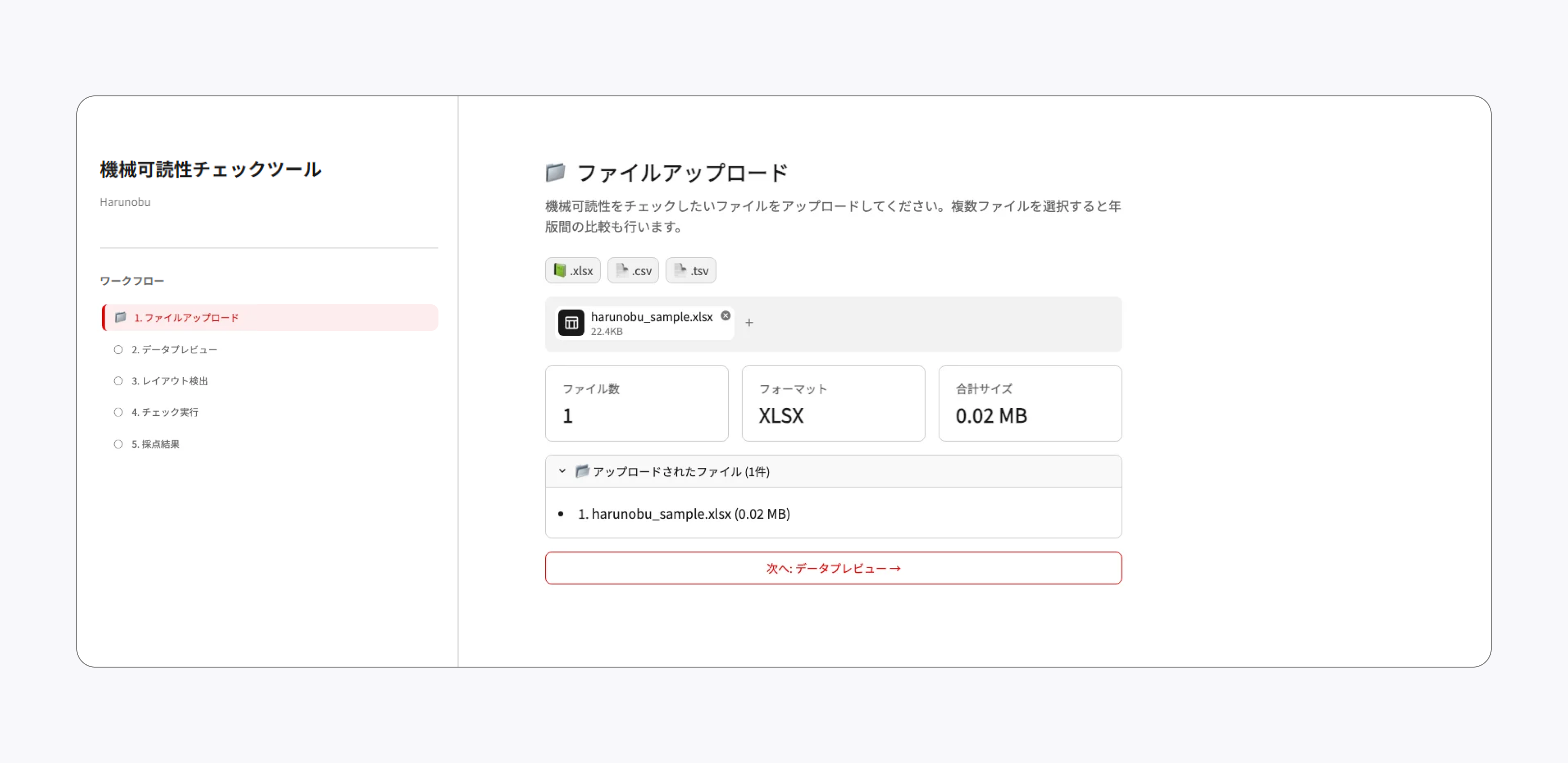
Select the file you wish to inspect. Excel, CSV, and TSV file formats are supported, and multiple files can be selected.
3-2. Preview Data
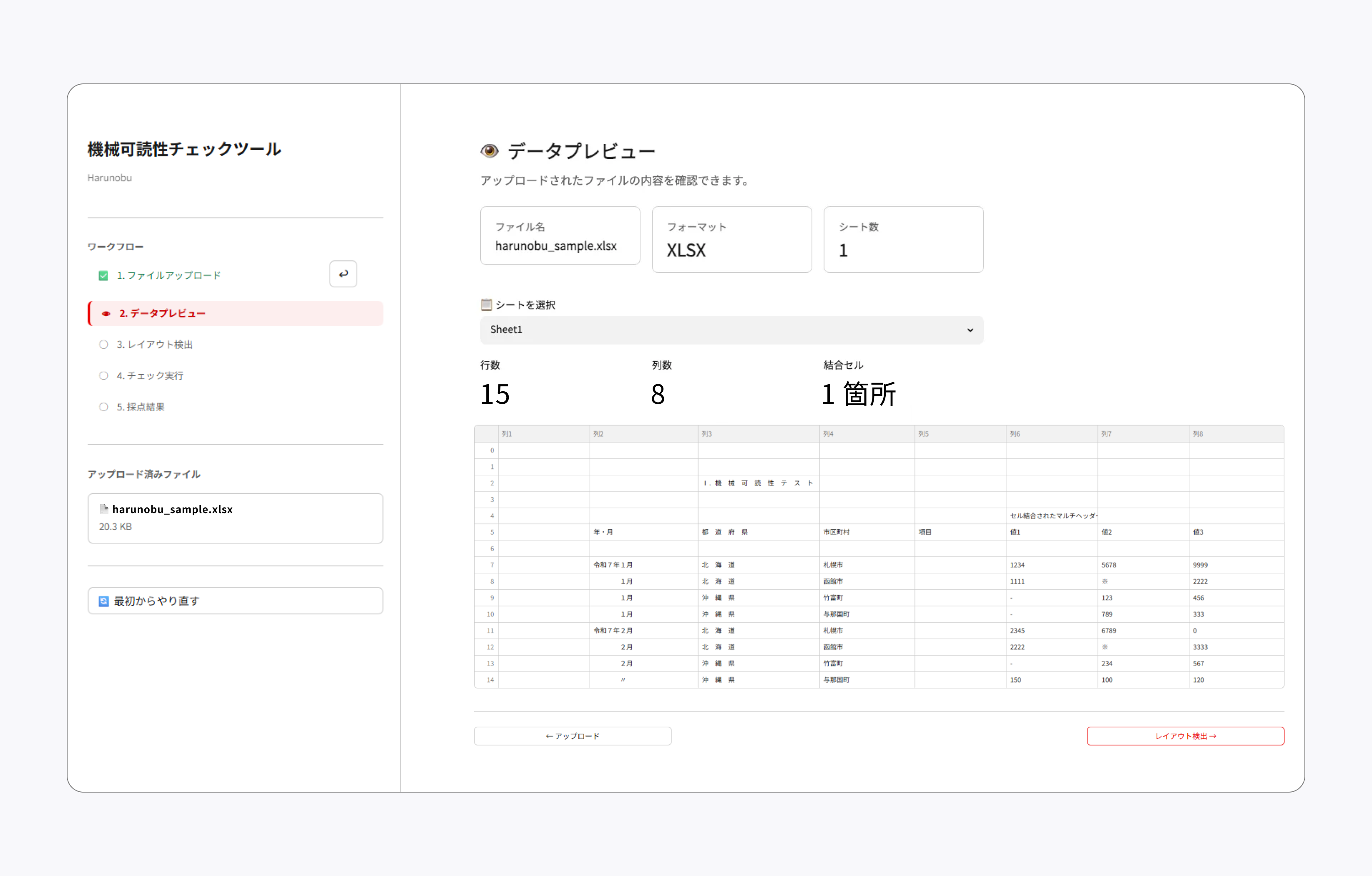
Check the loaded contents on the screen.
3-3. Detect Layout
Automatically estimates the layout of table ranges, headers, and more.
![Layout detection validation screen of "machine-readability check tool Harunobu". In the left navigation, workflow 1 and 2 have green checks, and "3. Layout Detection" is active (red). The uploaded file is harunobu _ sample. xlsx (20.5 kb), and the scores by level are indicated as L1 (compulsory 0 points): 0, L2 (compulsory 0 points): 0, and L3: unchecked. At the bottom is a "Start over" button. Sheet1 is displayed in the "Select a sheet" column in the right main area. File name: harunobu _ sample. xlsx, number of detection tables: 1, and out-of-table cells: 2 are displayed. Sheet1 (15 rows x 8 columns) has tabs for original data and detection results, and a spreadsheet is displayed in the detection results tab. Labels such as "T1 Header [text]", "T1 Body [text]", "T1 Header [numeric]", "T1 Header [empty]", "T1 Body [mixed]", and "T1 Body [numeric]" are given in each cell. F5 cell has a note of "Cell merged multi-header".](/assets/contents/node/basic_page/field_ref_images/28a64092-cbfb-419d-a4c7-418c0e0e00c3/ca61a8f8/3-3_%E3%83%AC%E3%82%A4%E3%82%A2%E3%82%A6%E3%83%88%E6%8A%BD%E5%87%BA.png)
3-4. Run Check
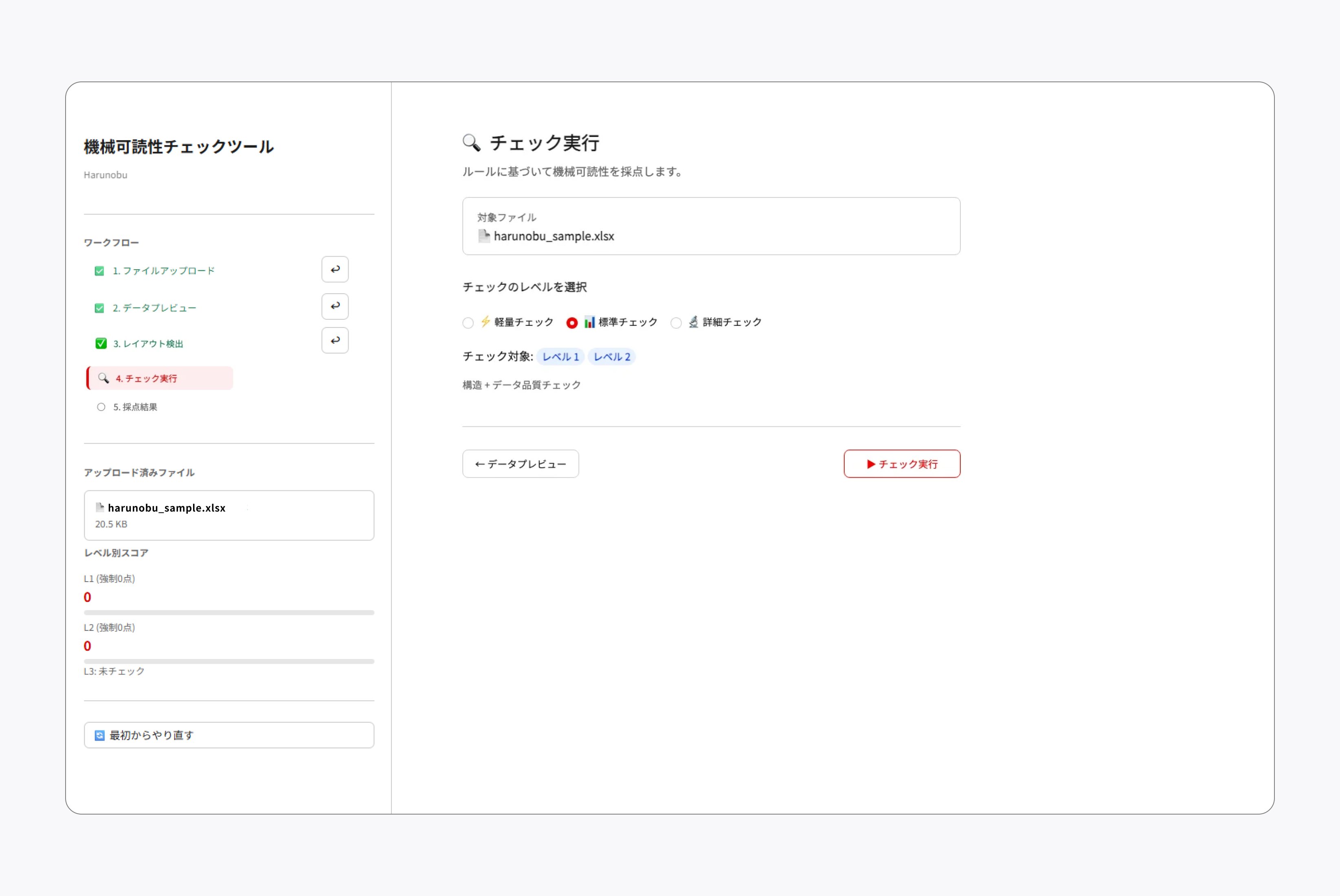
Select the level of check (lightweight check / standard check / detailed check) and execute judgment.
3-5. Check the scoring results and consider the points for improvement
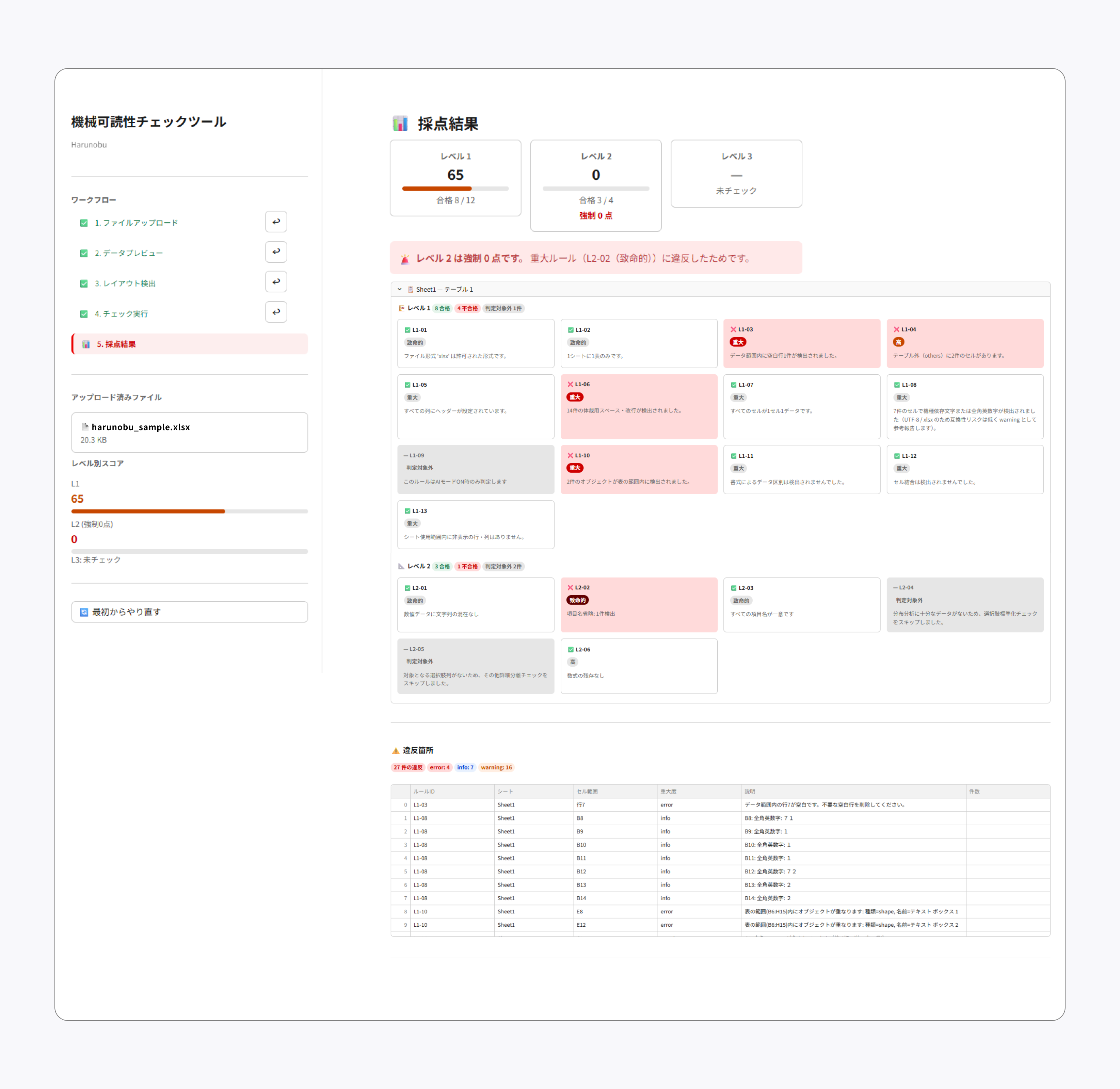
The score for each level and a list of violated rules, locations of violations, and reasons are displayed. The results can be downloaded in JSON or CSV format, which can be used to investigate which parts should be corrected to improve machine readability. Levels with serious rule violations are given a "mandatory 0 point," and the reason for the violation is also clearly indicated.
4. Usage (CLI)
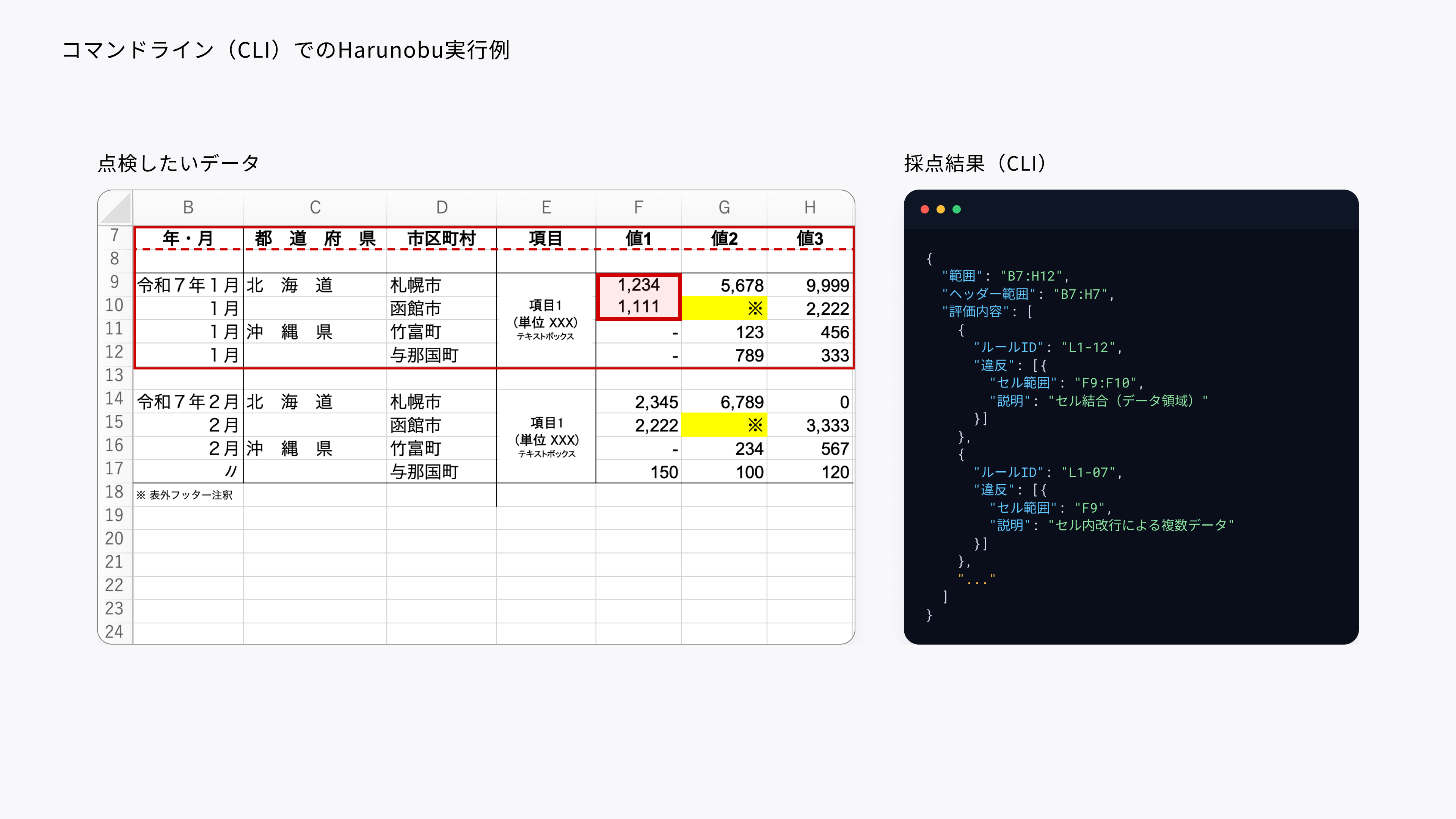
Harunobu supports running from the command line (CLI) as well as the browser screen. Scoring can be performed with a single command, and the results can be output as JSON or CSV files, which can be used for routine checking of multiple files or for integration into existing workflows. For installation instructions and detailed usage of the commands, please check the README file at the GitHub Repository (GitHub) is located at Fork .
5. Important Points
- Harunobu is an implementation example based on "Rules for Machine Readability in Administrative Data". Please note that the judgment logic of Harunobu is not the rule itself. In addition, some rules are judged to be difficult to judge by machine, and are excluded from judgment in Harunobu.
- Harunobu does not preclude the development of identification and correction programs based on the "Rules for Machine-Readability in Administrative Data." If you wish to develop programs that are your own evolution of Harunobu, the GitHub Repository (GitHub) is located at Fork in function.
- For additional known limitations in Harunobu, please review the limitations. md (GitHub) file in the GitHub repository.
6. Inquiries
Any questions or ideas should come from , comments and requests, .